Wednesday, 11 July 2012

Introduction to Ms Dynamics Layered Architecture.

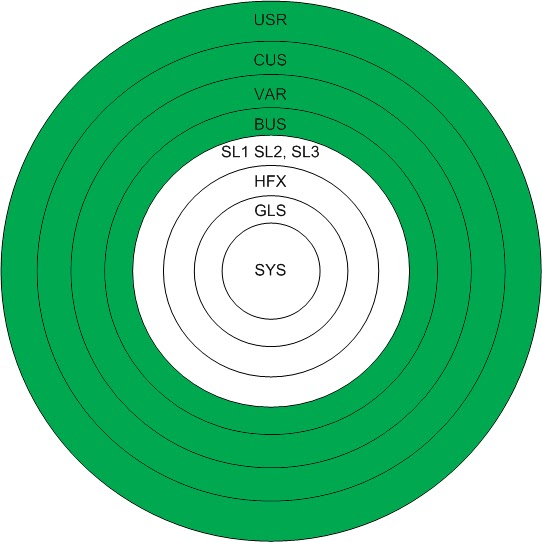
Microsoft Given a seperate architecture which is more flexible to update and customize the application called as layering.In this architecture we find several layers based on their security and functionality.This looks like the following.


The Assumption behind this architecture is to secure the basic application and also the use of This is,
   • Any user of the Microsoft Dynamics AX 2009 application can
     customize the Microsoft Dynamics AX 2009 application
   • The standard application is never overwritten
   • Deleting an object removes it either in the current layer or the layer
     above if the object exists in a higher layer. Every time an object is
     opened, the system automatically searches for and uses the object
     files needed in the highest layers first

Each layer is saved in a separate file that has an extension of .aod. For example,
Axsys.aod is the SYS layer. The aod extension is an acronym for Application
Object Data file.
The layers are designed for different Microsoft Dynamics AX 2009 developer
groups. Three groups have an interest in adding or modifying application objects:
        • Microsoft Business Solution Developers who create the
          standard application
       • Business partners and developers who want to enhance Microsoft
         Dynamics AX 2009
      • Microsoft Dynamics AX 2009 end-users

Introduction to AOT(Application Object Tree)

Introduction to AOT(Application Object Tree).

AOT (application object tree) ,is a tree stuctured window ,in which we have entire Ax objects .in


Basic Introdution or Working With Forms.

Creating a record:

Within each module tasks can be performed such as creating new records. For
example, in the Accounts Receivable module customers can be added and sales
orders created.
1. Open the customer form located in the Accounts Receivable module.
(Accounts Receivable/Common Forms/Customer Details)
2. Press CTRL + N to create a new blank row in the customer form.
3. Enter the following data into the fields:
o Customer account: 4099
o Name: Wholesale Foods
o Customer group: 30

The data is automatically saved into the database after moving away from the
new record


Sorting Records:
When working with data in a form it is sometimes necessary to change the sort
order of the data to find specific information more easily. Records can be sorted
in a form using three different methods.
1. Click the header of the sorting column. Records are sorted in
descending order. Clicking the header again sorts in ascending order.
2. Right-click on a field in the column to sort. The shortcut menu
appears with the options to sort in ascending or descending order.
3. Sort records by selecting either Sort Ascending or Sort Descending
from the Edit/Sort menu in the menu bar.
o To remove the sort order, click the Remove
filer icon.

Filtering of Records:

Sorting works well when working on a small set of data. However, to work
efficiently with large amounts of data, filter the data to work with a specific
subset of information.
There are three ways to filter data in the user interface:
• Current content of a field
• Using an inquiry dialog where the criteria for the filter is specified
• Filter by grid

To remove this filter, click the Remove Filter icon on the toolbar.

Finding Records:

Use the Global Search option to search for information across selected tables.
There are three ways to start a Global Search. From the “Menu Pane:”
• Select the ‘Find…’ option on the Edit menu
• Select the Binocular icon from the toolbar
• Press Ctrl + F

Basic Navigation

Basic Navigation includes 1)navigation pane and 2)area pane

When first opening Microsoft Dynamics AX 2009, the Navigation Pane appears.
This menu contains all the purchased modules in the license code. From here, the
user can browse to any module in Microsoft Dynamics AX 2009.

Area Page:
An Area Page is a Microsoft Dynamics AX 2009 navigation page that displays
menu items that link to list pages, content pages, forms, reports, classes, jobs, and
queries. To view an area page, click a module button in the Navigation Pane. The
area page opens in the client content pane that is automatically generated using
the menu information for that module.

X++?

X++ is the object-oriented programming language that is used in the MorphX
environment

MorphX

The MorphX Development Suite is the integrated development environment
(IDE) in Microsoft Dynamics AX 2009 used to develop and customize both the
Windows interface and the Web interface. An IDE integrates development
functions such as designing, editing, compiling, and debugging within a common
environment.
With MorphX, common operations such as building or modifying forms, menus,
and reports are done using drag-and-drop techniques with little or no coding.

IntelliMorph

IntelliMorph is the technology that controls the user interface in Microsoft
Dynamics AX 2009. The user interface is how the functionality of the application
is presented or displayed to the user. The same functionality can be displayed on
multiple platforms or devices that use the same application code; for example,
through the Web or through Mobile devices.
IntelliMorph controls the layout of the user interface and makes it easier to
modify forms, reports, and menus.